The HTML <progress> tag
The HTML <progress> element shows the completion progress of a task as a progress bar. Set value and max; omit value for an indeterminate "working…" state.
Overview
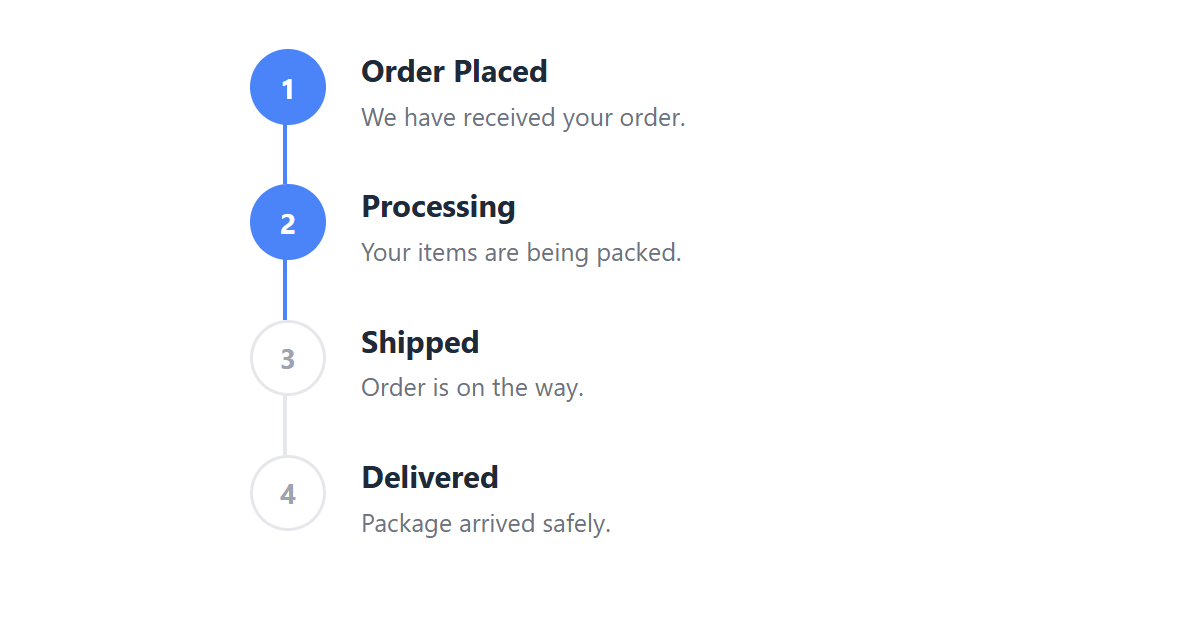
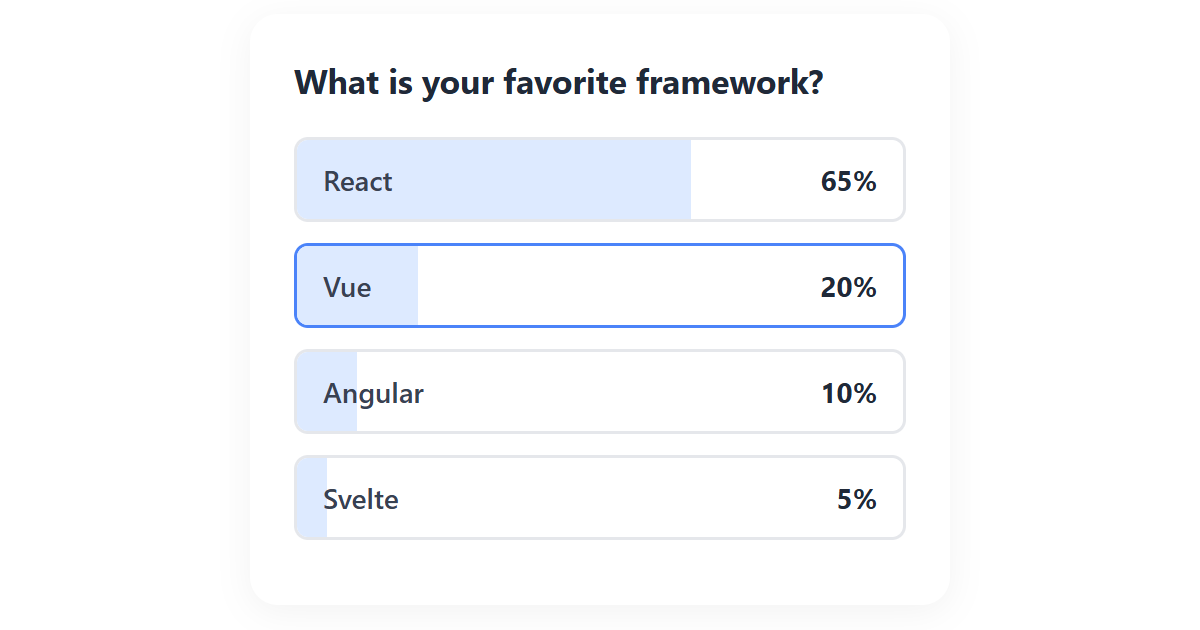
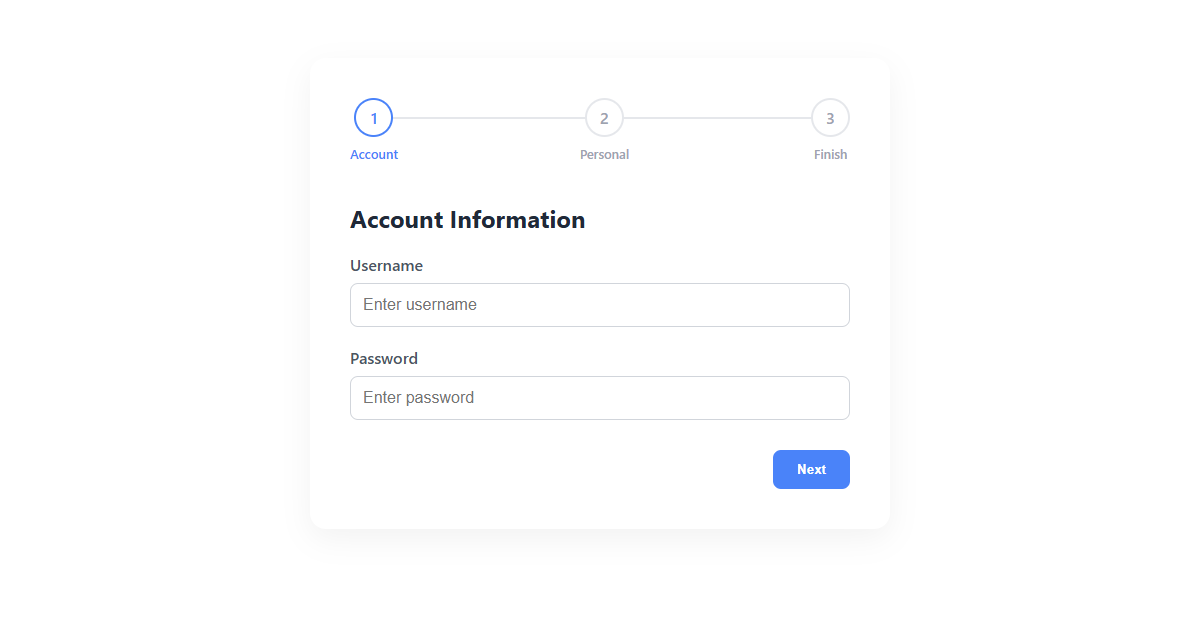
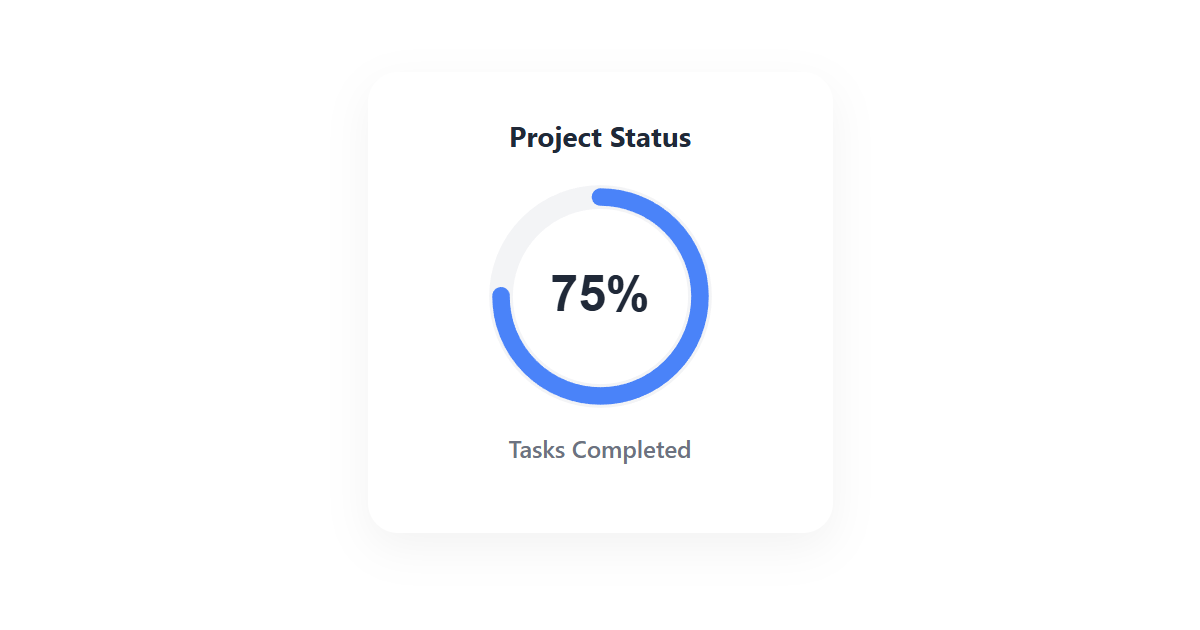
The <progress> element represents how far along a task is: a file upload, a download, a multi-step form. Browsers render it as a progress bar.
Give it a value and a max for a determinate bar that shows a specific percentage (value="30" max="100" is 30% done). Omit the value for an indeterminate state, an animated bar for when the total is unknown or work has merely started.
It is specifically for task progress, not for displaying a measurement; for a gauge of a value within a range (disk usage, a score), use <meter> instead. Provide a text label nearby, or via aria-label, so the progress is also conveyed in words for assistive technology.
Syntax
<progress value="70" max="100">70%</progress>Attributes
The <progress> element supports the following attributes, in addition to the global attributes available to every HTML element.
Example
<label>Upload: <progress value="65" max="100">65%</progress></label>More Examples


Best practices
- Set
valueandmaxfor a determinate bar that reflects real progress. - Omit
valuefor an indeterminate (animated) bar when the total is unknown. - Use it for task progress only. For a measured value within a range, use <meter>.
- Provide a text label or
aria-labelso the progress is conveyed in words too.
Frequently asked questions
What is the progress element for?
What is the difference between progress and meter?
<progress> shows how far along a task is; <meter> shows a measurement within a known range (like disk usage).How do I make an indeterminate progress bar?
value attribute. The browser shows an animated, indeterminate bar.How do I style the progress bar?
::-webkit-progress-bar / ::-webkit-progress-value and ::-moz-progress-bar pseudo-elements for the track and fill.






















