The HTML <canvas> tag
The HTML <canvas> element is a scriptable drawing surface for graphics, charts, games and image processing, controlled with the Canvas 2D or WebGL JavaScript APIs. Set its pixel size with the width and height attributes.
Overview
The <canvas> element gives you a bitmap drawing surface that you control entirely with JavaScript, through getContext("2d") for 2-D graphics or "webgl" / "webgpu" for 3-D. It is the engine behind charts, games, data visualizations and in-browser image editors.
A subtle but important point: the width and height attributes set the drawing resolution (the number of bitmap pixels), which is separate from the element's CSS display size. If you size a canvas only with CSS, the browser scales those bitmap pixels and the result can look blurry, so set the attributes to the resolution you actually draw at.
Because canvas content is just pixels with no structure, it is invisible to assistive technology. Put meaningful fallback content between the tags, keep an accessible alternative for whatever you draw, and, for static graphics like icons and logos, consider whether an <svg> (which is resolution-independent and accessible) would serve better.
Syntax
<canvas id="c" width="300" height="150">Your browser does not support canvas.</canvas>Attributes
The <canvas> element supports the following attributes, in addition to the global attributes available to every HTML element.
Example
<canvas id="demo" width="260" height="80" style="border:1px solid #cbd5e1;border-radius:6px;"></canvas>
<script>
  var ctx = document.getElementById('demo').getContext('2d');
  ctx.fillStyle = '#1c7ce9'; ctx.fillRect(10, 10, 60, 60);
  ctx.fillStyle = '#16a34a'; ctx.beginPath(); ctx.arc(140, 40, 30, 0, 7); ctx.fill();
</script>
More Examples
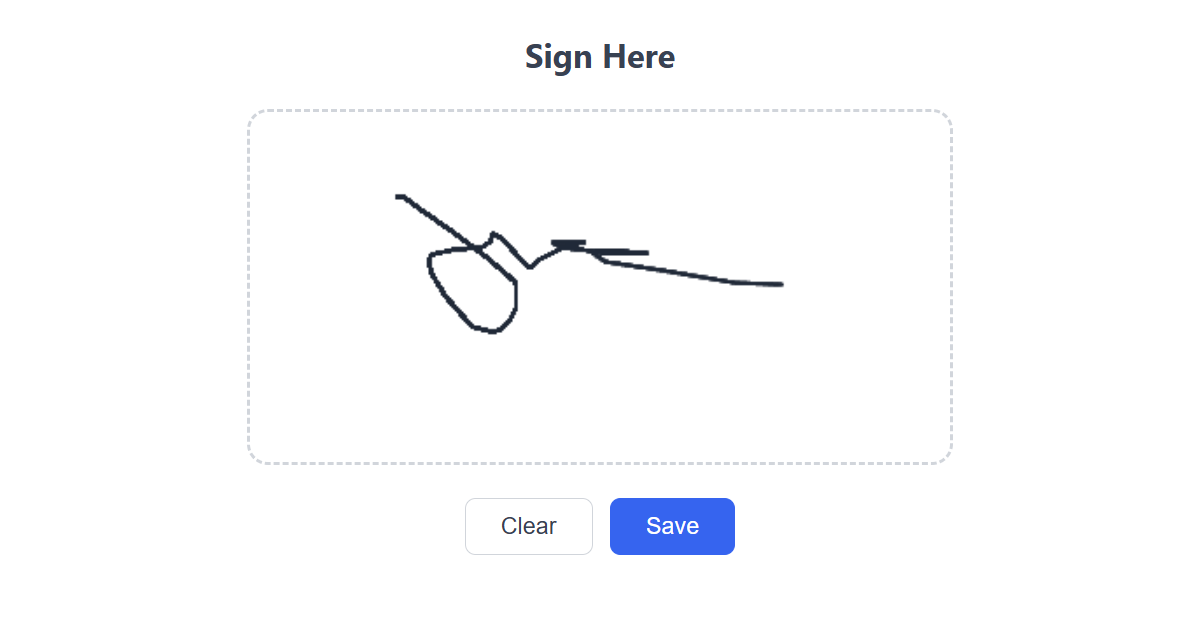
Digital Signature Pad JS

Interactive Radar Scanner Animation JS

Confetti Celebration Effect JS
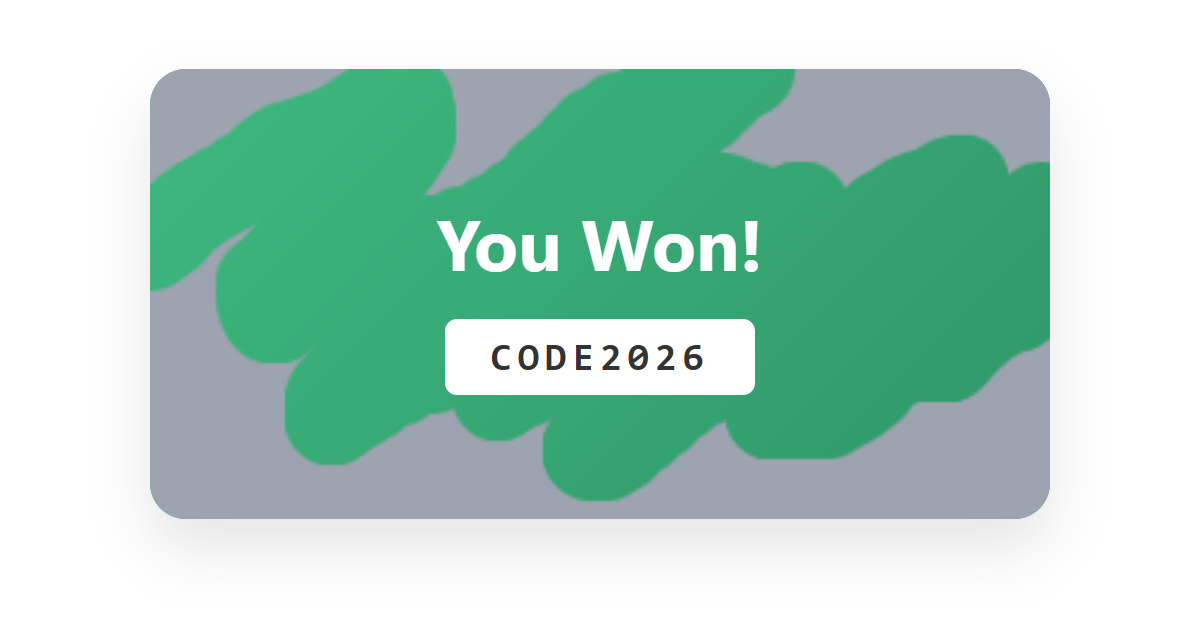
Scratch Card Reveal JS

Interactive Orb Constellation JS

Interactive Galaxy Spiral Animation JS

Cyberpunk Data Stream Matrix JS

Interactive Canvas Confetti Explosion JS
Best practices
- Set the drawing resolution with the
width/heightattributes, separate from any CSS display size. - Account for high-density screens by scaling the bitmap by
devicePixelRatio. - Provide fallback content inside the element and an accessible alternative for what you draw.
- For static, scalable graphics like icons, prefer <svg> over canvas.
Accessibility
Canvas drawings are invisible to assistive technology. Always offer an accessible alternative: fallback content between the tags, ARIA where appropriate, or a parallel representation such as a data <table> for a chart. For scalable, inherently more accessible graphics, prefer SVG.























