About the Online Ruler in Inches
What is an online ruler in inches?
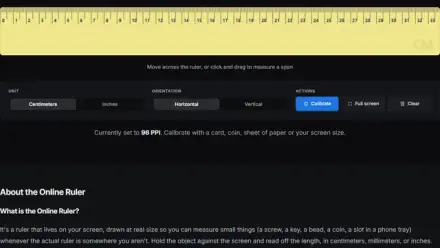
An online ruler in inches is a ruler drawn on your screen at actual physical size, divided down to 1/16 of an inch like a wooden or steel rule.
Screens pack different numbers of pixels into an inch, so the tool calibrates once against an object you already own. After that it knows how many pixels equal an inch on your display.
How to Use This Tool
- Calibrate once. Press Calibrate, pick a card, coin, sheet of paper or your screen size, then match the shape on screen to the real object.
- Pick a length. Choose a 6 or 12 inch rule, or let it fill the width of your screen.
- Hold the object against the screen. Line up one edge with the zero mark on the left.
- Drag to measure. Click and drag along the ruler and the readout gives you the span as a fraction and a decimal.
Example
Drag across the ruler and the raw pixel distance will be converted to a fraction you can actually use, with the decimal shown alongside it:
348 pixels
calibrated at 96 ppi
Switch Read as to Decimal and the same span reads 3.63" first instead, which suits spreadsheets and CAD better than sixteenths.
Inch Fraction Conversion Chart
Each sixteenth of an inch with its decimal and millimeter equivalent. Handy when a drawing gives you one form and your tape gives you the other.
Inch fractions with decimal and millimeter equivalents
| Fraction | Decimal inches | Millimeters |
|---|
| 1/16 | 0.0625 | 1.59 |
| 1/8 | 0.125 | 3.18 |
| 3/16 | 0.1875 | 4.76 |
| 1/4 | 0.25 | 6.35 |
| 5/16 | 0.3125 | 7.94 |
| 3/8 | 0.375 | 9.53 |
| 7/16 | 0.4375 | 11.11 |
| 1/2 | 0.5 | 12.70 |
| 9/16 | 0.5625 | 14.29 |
| 5/8 | 0.625 | 15.88 |
| 11/16 | 0.6875 | 17.46 |
| 3/4 | 0.75 | 19.05 |
| 13/16 | 0.8125 | 20.64 |
| 7/8 | 0.875 | 22.23 |
| 15/16 | 0.9375 | 23.81 |
| 1 inch | 1.0 | 25.40 |
Common Use Cases
An inch rule on the screen covers the moments when the real one is in another room:
- Checking a listing: Hold a phone or a watch strap up to the screen to see whether the stated size is what you pictured.
- Craft and sewing: Measure a button, a bead, or a seam allowance without hunting for a tape.
- Print checks: Confirm a photo really is 4 by 6 before you send it off.
- Small hardware: Size a screw, a washer, or a drill bit against the sixteenth marks.
- Homework: Give a child a working ruler when the school one has gone missing.
Working in metric instead? Our Online Ruler in CM has the same calibration in centimeters and millimeters. For anything longer than your screen, the Online Tape Measure is a measuring tape that keeps going past the edge, up to 6 feet.
Frequently Asked Questions
How accurate is an online ruler in inches?
That depends on how carefully you calibrate. Matched to a bank card it works well for craft, shopping and homework, while precision work still calls for a physical rule.
Why do I need to calibrate it?
Screens differ in how many pixels they pack into an inch, so an uncalibrated ruler can only guess your scale. Matching the on-screen shape to an object of known size removes the guess.
What can I calibrate with?
A bank card, a coin, a sheet of paper, or your screen's diagonal size if you have no object handy. A larger reference spreads any error further, so paper suits a big screen and a coin suits a phone.
Does browser zoom affect the measurements?
Yes. Zoom changes how many pixels the browser treats as an inch, so keep it at 100 percent, and this tool warns you above the ruler if zoom has changed since you calibrated.
Can I use my phone as a ruler?
Yes, though a card is wider than most phone screens, so calibrate with a coin instead. Then hold small objects flat against the glass and turn the phone sideways for more length.
What are the small lines between the numbers?
Each inch is split into sixteenths. The longest line between two numbers is the half inch, the next longest are quarters, then eighths, and the shortest are sixteenths.