0 words
0 chars
0 lines
0 sec
Preview
Write Markdown and preview the formatted result live.
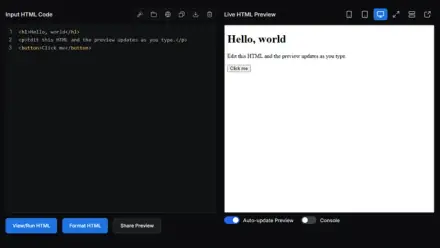
This is a live Markdown editor: you write Markdown on the left and the formatted result appears on the right as you type. It speaks GitHub Flavored Markdown, so tables, task lists, strikethrough and fenced code blocks all work, and code is syntax-highlighted. A formatting toolbar sits above the editor for the moments you cannot remember whether it is one asterisk or two, and the two panes scroll together so you never lose your place in a long document.
Everything happens in your browser: the Markdown parser, the sanitizer and the highlighter all run on your machine, and nothing you type is uploaded. When you are done you can copy the Markdown, copy the rendered HTML, or download either one as a file. The preview is sanitized with DOMPurify, so even if you paste Markdown that contains raw HTML, nothing dangerous can run.
What people reach for a live Markdown editor to do:
Markdown is a lightweight way to format plain text using simple symbols, a hash for a heading, asterisks for bold, a dash for a list item. It was created by John Gruber in 2004 and is now the standard for READMEs, documentation, chat apps and static site content because it stays readable as plain text while still producing formatted output.
Yes. It renders GitHub Flavored Markdown, which adds tables, task list checkboxes, strikethrough and automatic links on top of standard Markdown. The toolbar has one-click buttons for tables and task lists, and the sample document demonstrates all of them.
Completely. The editor, the preview, the sanitizer and the syntax highlighter all run in your browser on your own device. Nothing you type is sent to a server, so drafts, notes and internal documentation are safe to write here.
Click Copy HTML to put the rendered HTML on your clipboard, ready to paste into a website, blog or email. Or click Download .html to save a complete standalone HTML file. The HTML is the sanitized output from the preview, so it is safe to reuse.
Yes. Ctrl or Cmd + B wraps the selection in bold, + I makes it italic, and + Shift + K turns it into a link. The link one takes Shift because plain Ctrl or Cmd + K opens the site search from any page. Pressing Tab inserts an indent instead of moving focus out of the editor, which is handy for nested lists and code.
Fenced code blocks are syntax-highlighted so they are easier to read, using the same highlighter many documentation sites use. Add a language after the opening backticks, like three backticks followed by js, to hint the language, though it is usually detected automatically.
Yes, the Markdown to PDF converter, linked above the About section, takes the same Markdown and produces a paginated PDF, either as a downloaded file or through your browser's print dialog for selectable text. Write here, export there.
 PHPSecure Login System with PHP and MySQL
 PHPShopping Cart System with PHP and MySQL
 JavaScriptMulti Select Dropdown with HTML and JavaScript
 JavaScript5 Ways to Detect Mobile Devices with JavaScript
 PHPImplement Google Login with PHP
 PHPEvent Calendar with PHP
 PHPSecure Registration System with PHP and MySQL
 PHPHow to Send Emails in PHP with Gmail SMTP
Top categories
More categories
By language
Collections
Web references
Lookups