// bulk image editor
Edit every image at once, and see what comes out.
Drop in a folder, stack up the steps you want, and read the full list of files the run is about to write. Names, formats and pixel sizes, all before a single image is touched.
- 30 operations you can stack in any order, in the browser
- Every output named and sized before the run starts
- Free with no account, and nothing is ever uploaded
Opens straight into the editor. No sign up, and no watermark unless you add one.
One Window, The Whole Batch
Files, steps, conditions, naming and the finished set all sit in the same place, so a folder of images never has to leave to get finished.
Every batch tool runs. This one shows you first
Most batch tools ask you to trust them. You pick a size, press go, and find out what really happened by opening the folder afterwards.
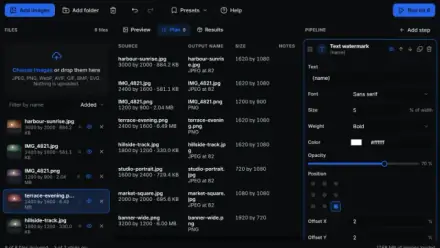
The Plan tab lists every file the run will write before it writes one. Source name and size on the left, output name, format and pixel size on the right, and a note beside anything that deserves one.
- Two images heading for the same filename, marked as renamed
- A source too small for the width you asked for
- Transparency about to be flattened, and tokens it does not know
Thirty operations, and a rule for each one
A step does not have to be all or nothing. Give it a condition and it only touches the files that match, so one pipeline can cope with a folder of mixed sizes, shapes and formats.
Sixteen conditions ship with it, covering width, height, orientation, transparency, source format, filename and file weight. Everything that fails the test passes through untouched.
- Shape: resize, canvas, crop, trim, rotate, flip, round corners, border
- Color: brightness, contrast, levels, gamma, tint, replace color and eight more
- Finishing: blur, sharpen, pixelate, vignette, noise, text and image watermarks
Then name them, size them and zip the lot
A naming template builds each filename out of 15 tokens, among them the original name, the output size, the position in the list and the date. A preview under the field shows what the selected file will be called.
Add widths to the Sizes list and every image writes a responsive set instead of one file. For a single image, the image resizer and the JPG to WebP converter are quicker.
- Writes JPEG, PNG and WebP, plus AVIF where the browser can encode it
- Reads JPEG, PNG, WebP, AVIF, GIF, BMP, ICO, SVG and TIFF
- A quality slider per format, and a target file size in KB
From Folder To Finished Set
Four steps, and the images never leave your machine.
-
01
Drop the folder in
Drag a folder onto the file list or pick the images by hand. They are read in your browser, and nothing is uploaded.
-
02
Stack up the steps
Add operations in the order you want them applied, and give any of them a condition so it skips the files it should not touch.
-
03
Read the plan
The Plan tab names every file the run is about to write, with its format and pixel size, and flags anything worth a second look.
-
04
Run it and take the ZIP
Watch the progress bar, then download the whole set as one ZIP or pull out single files.
Next To The Others
Every tool here is good at the job it was built for. The gap this one fills is knowing what a batch will do before you commit to it.
| Feature | CodeShack | BIRME | iLoveIMG | XnConvert |
|---|---|---|---|---|
| Built for | Editing a folder of images | Bulk resize and crop | One task at a time | Desktop batch conversion |
| Runs without uploading | Yes | Yes | No | Desktop app |
| Operations you can stack | 30, in any order | A fixed set | One per visit | Over 80 |
| A condition per step | Yes | No | No | No |
| Lists every output before the run | Yes | No | No | No |
| Responsive size sets per image | Yes | No | No | No |
| Filename template | 15 tokens | Pattern and numbering | No | Yes |
| Works without an account | Yes, 10 per batch | Yes | Free tier | Free for personal use |
Compared on each tool’s publicly documented features, checked in August 2026. A cross means the feature is not documented, not that the job cannot be done another way. If one of these tools adds something listed here, tell us and we will update it.
Frequently Asked Questions
Everything worth knowing before you drop a folder in
Is this bulk image editor free?
Yes. Every operation, every condition and every output format is free, and you do not need an account. Without one a batch takes 10 images at a time. A CodeShack Pro membership lifts that limit, and nothing else is held back.
Do my images get uploaded?
No. Each file is decoded, edited and re-encoded inside your browser. Nothing reaches a CodeShack server, which also means the editor keeps working after you lose your connection.
How many images can it handle at once?
Ten per batch without an account, and no fixed number with Pro. What actually limits a big run is your own machine, since every image is decoded into memory before it is written back out.
What formats can it read and write?
It writes JPEG, PNG and WebP, plus AVIF in browsers that can encode it. It reads JPEG, PNG, WebP, AVIF, GIF, BMP, ICO, SVG and TIFF. The editor tests what your browser can encode when it loads, and says so when a format is missing.
What does a condition do?
It decides whether one step runs on one file. Sixteen conditions cover size, shape, transparency, source format, filename and file weight, so one pipeline can handle a folder of mixed images. A condition reads the image as it stands at that point in the run, so an earlier resize changes what it sees.
Does it remove EXIF and GPS data?
Yes, though not as a feature. Re-encoding through a browser canvas drops EXIF, GPS and color profiles, so every file this editor writes comes out without them.
Can I save a pipeline and use it again?
Yes. Save it under a name, or export it as a JSON file to keep or hand to someone else. Five pipelines ship ready to load: web ready, square thumbnails, social card, watermark and black and white.
Does it work on a phone?
It runs, but it is built for a mouse and a keyboard, and a large batch asks for more memory than a phone usually has. A laptop or desktop is the better place to do real work.
Drop a folder in and read the plan
The editor opens on an empty list. Add images, add a step, and the Plan tab starts naming what it is going to write.
Free, no account, and nothing you add is uploaded.