Browse for an image or drag & drop it here.
You can also paste from the clipboard.
100%
Turn landscape photos into portrait format in seconds.
Browse for an image or drag & drop it here.
You can also paste from the clipboard.
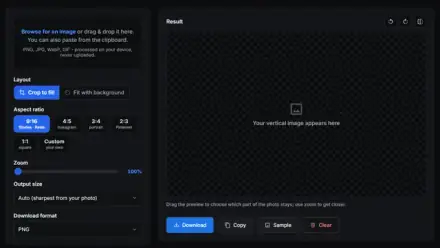
Most photos are taken in landscape, but Stories, Reels, TikTok and phone wallpapers all want portrait. This converter turns a horizontal image into a vertical one right in your browser, and the preview you see is exactly the file you download. Pick a target ratio like 9:16 or 4:5, then decide what happens to the parts that no longer fit.
There are two honest ways to solve that problem, and the tool gives you both. Crop to fill keeps the frame full: just drag the preview to choose which part of the photo survives and zoom in if you want a tighter composition. Fit with background keeps every pixel of the original and fills the empty space above and below with a blurred, darkened copy of the photo (the effect you see everywhere on social media) or a solid color of your choice. Rotate and flip buttons, custom ratios, sensible export sizes and PNG, JPEG or WebP output round it off. Nothing is ever uploaded to a server.
Crop to fill cuts a vertical slice out of your photo so the frame is completely filled; you lose the left and right edges but get a clean, full-bleed image. Fit with background shrinks the whole photo to fit inside the vertical frame and fills the space above and below with a blurred copy of the image or a solid color, so nothing is cut off.
1080 by 1920 pixels, which is a 9:16 aspect ratio. Select the 9:16 preset and the Social output size and the tool exports exactly that. TikTok and YouTube Shorts use the same dimensions.
In crop mode the preview is interactive: drag it with your mouse or finger to slide the photo around inside the vertical frame, and use the zoom slider to crop tighter. What you see in the preview is exactly what gets downloaded.
The tool draws an enlarged copy of your photo behind the original, blurs it and darkens it slightly so the sharp foreground stands out. Because the background comes from the same image, its colors always match, which looks far better than plain black bars. You can adjust both the blur strength and the darkening.
No. With the Auto output size the tool never upscales: the output resolution comes directly from your original pixels. The Social and Compact presets resize to 1080 or 720 pixels on the short side, which is what the platforms display anyway. Choose PNG for lossless output or JPEG and WebP with an adjustable quality slider.
9:16 for Stories, Reels, TikTok and phone wallpapers; 4:5 for Instagram feed posts; 2:3 for Pinterest pins and classic photo prints; 3:4 for a gentler portrait look; 1:1 if you need a square. If you need something unusual, the custom option accepts any width to height ratio.
The presets on this page are aimed at portrait output, but the crop and fit engine works with any image. For landscape targets like 16:9 you will have a smoother time on our vertical to horizontal converter, which has the right presets built in.
No. Loading, cropping, blurring and exporting all happen in your browser using the canvas API. Your photos never leave your device and we never see them.
 PHPSecure Login System with PHP and MySQL
 PHPShopping Cart System with PHP and MySQL
 JavaScriptMulti Select Dropdown with HTML and JavaScript
 JavaScript5 Ways to Detect Mobile Devices with JavaScript
 PHPImplement Google Login with PHP
 PHPEvent Calendar with PHP
 PHPSecure Registration System with PHP and MySQL
 PHPHow to Send Emails in PHP with Gmail SMTP
Top categories
More categories
By language
Collections
Web references
Lookups
Courses
Chapters