About the HTML to PDF Converter
What is this tool?
This tool turns HTML into a PDF document without your code ever leaving the browser. Paste a full document or a fragment, watch the live preview update as you type, set the page size, orientation and margins, and convert. The styles in your markup are honored (a style tag, inline styles, tables, colors) and CSS page-break rules decide where pages split, which the built-in sample demonstrates with a forced second page.
You actually get two ways to produce the file, because they have different strengths. Download PDF renders your HTML to a high-resolution image-based PDF and saves it directly, predictable and instant. Print / Save as PDF hands the same document, with the correct page setup already injected, to your browser's print engine: one click more, but the result is a vector PDF with selectable, searchable text. For invoices and reports you plan to email around, the print path is usually the one you want.
How to Use This Tool
- Add your HTML. Paste it into the editor, open an .html file, or start from the sample report.
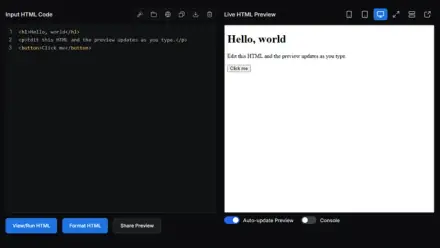
- Check the live preview. It renders exactly what will be converted, and the chip above it estimates the page count for your current page setup.
- Set up the page. Pick the size (A4 through Legal), portrait or landscape, the margin, and how page breaks should behave.
- Convert. Download PDF saves the file directly; Print / Save as PDF opens the print dialog for a selectable-text version, so choose Save as PDF as the destination.
Common Use Cases
What people convert here every day:
- Invoices and receipts: an HTML template plus this tool beats wrestling with a word processor.
- Reports: generate HTML from your data, style it once, and export a clean paginated PDF.
- Archiving: freeze an email template or a page snippet into a file that looks the same everywhere.
- Documentation handoffs: share rendered content with people who should not need a browser or a build step.
- Related tools: write in Markdown and use the Markdown to PDF converter, turn plain text into documents with the text to PDF converter, or test your markup first in the HTML viewer.
Frequently Asked Questions
How do I convert HTML to a PDF?
Paste your HTML into the editor, check the live preview on the right, pick a page size and margin, and click Download PDF. The conversion runs in your browser and the file saves to your device. If you want selectable text in the result, use Print / Save as PDF instead and choose Save as PDF in the dialog.
What is the difference between Download PDF and Print / Save as PDF?
Download PDF renders your HTML to high-resolution images and wraps them in a PDF, which is fully automatic, but the text is part of the image. Print / Save as PDF routes the document through the browser's own print engine, which produces a true vector PDF with selectable, searchable text and usually a smaller file. The tool injects the correct page size and margins for you either way.
Is the text in the generated PDF selectable?
From the Download button, no, the pages are images, so the text cannot be selected or searched. From the Print / Save as PDF button, yes: the browser writes real text into the PDF. If selectability matters, for example for invoices people might copy from, use the print path.
How does the tool handle CSS?
CSS in a style tag or in inline style attributes is fully applied, exactly as the preview shows. External stylesheets referenced with link tags only work when the server hosting them allows cross-origin access, which most do not. The reliable approach is to paste the CSS into a style tag. Background colors are preserved in the print path via print-color-adjust.
How do I control where pages break?
Use the standard CSS properties in your markup: page-break-before: always starts a new page, and page-break-inside: avoid keeps an element on one page. The sample document demonstrates a forced break. The Page breaks option adds a stronger mode that avoids splitting any element across pages during the image-based conversion.
Will JavaScript in my HTML run?
No. The preview renders in a sandboxed frame with scripts disabled, and the conversion captures the static result of your markup and CSS. If your page needs JavaScript to build its content, run it elsewhere first and paste the generated HTML here.
Why does my PDF look different from the preview?
The Download path repaints your HTML with a canvas renderer that supports most, but not all, CSS, and exotic properties, some web fonts and cross-origin images are the usual gaps. If the downloaded file does not match the preview, use Print / Save as PDF: it uses the same engine as the preview itself, so what you see is what you get.
Is the HTML code I enter private?
Yes. The editor, the preview and both conversion paths all run locally in your browser, even the PDF library is served from our site and executes on your machine. Your markup and the generated files are never uploaded anywhere.