Browse for an image or drag & drop it here.
You can also paste from the clipboard.
100%
Turn portrait photos into landscape format in seconds.
Browse for an image or drag & drop it here.
You can also paste from the clipboard.
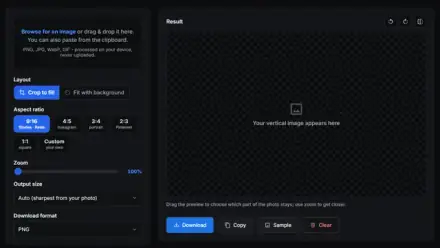
Phones shoot portrait, but YouTube thumbnails, desktop wallpapers, presentation slides and website headers all want widescreen. This converter turns a vertical image into a horizontal one entirely in your browser, and the preview is the exact file you download. Choose a landscape ratio like 16:9, then decide how to deal with the width the photo does not have.
You get the two approaches editors actually use. Crop to fill takes a landscape slice out of the photo: drag the preview to pick which band survives and zoom for a tighter frame. Fit with background keeps the entire photo centered and fills the sides with a blurred, darkened copy of itself, the polished pillarbox look you see on TV and social media, or with any solid color. Rotate and flip buttons, custom ratios, platform-sized exports and PNG, JPEG or WebP output are all built in, and your image never leaves your device.
Crop to fill cuts a horizontal band out of your photo so the widescreen frame is completely filled; the top and bottom are sacrificed. Fit with background keeps the whole photo in the center and fills the left and right sides with a blurred copy of the image or a solid color, so nothing is lost.
1280 by 720 pixels with a 16:9 aspect ratio. Pick the 16:9 preset and the Compact output size for exactly that, or the Social size for 1920 by 1080 if you want the full HD version.
Pillarboxing is the pair of vertical bars that appear on the sides when a tall image is shown in a wide frame. Plain black bars look unfinished, so this tool fills them with a blurred, darkened copy of your own photo instead, which is the style broadcasters and social apps use.
In crop mode, simply drag the preview with your mouse or finger; the photo slides inside the fixed frame, and the zoom slider lets you crop tighter. The download always matches the preview exactly.
16:9 is the standard for YouTube, TVs and most laptop screens. 4:3 suits older monitors and iPads, 3:2 matches DSLR photos and prints, 5:4 is a classic monitor shape, and 1:1 gives you a square. The custom option accepts any ratio you type.
No. The Auto output size derives the resolution from your original pixels without upscaling, and the Social and Compact presets resize down to platform-friendly sizes. Export as lossless PNG, or as JPEG or WebP with a quality slider.
Yes. The tool accepts any image, so you can also use it to change one landscape ratio into another, for example cropping a 4:3 photo down to 16:9 for a video thumbnail.
No. Everything, from cropping to the blur effect to the final export, runs in your browser with the canvas API. Your photos stay on your device.
 PHPSecure Login System with PHP and MySQL
 PHPShopping Cart System with PHP and MySQL
 JavaScriptMulti Select Dropdown with HTML and JavaScript
 JavaScript5 Ways to Detect Mobile Devices with JavaScript
 PHPImplement Google Login with PHP
 PHPEvent Calendar with PHP
 PHPSecure Registration System with PHP and MySQL
 PHPHow to Send Emails in PHP with Gmail SMTP
Top categories
More categories
By language
Collections
Web references
Lookups